
CardCrop Desktop
Clean card photos, without the crop guesswork.
Available on the Subchain Launcher
Organize card-photo batches for your listing workflow.
Choose a local folder, work through a batch, and review it before moving to your next listing step.
PREPARE A BATCH
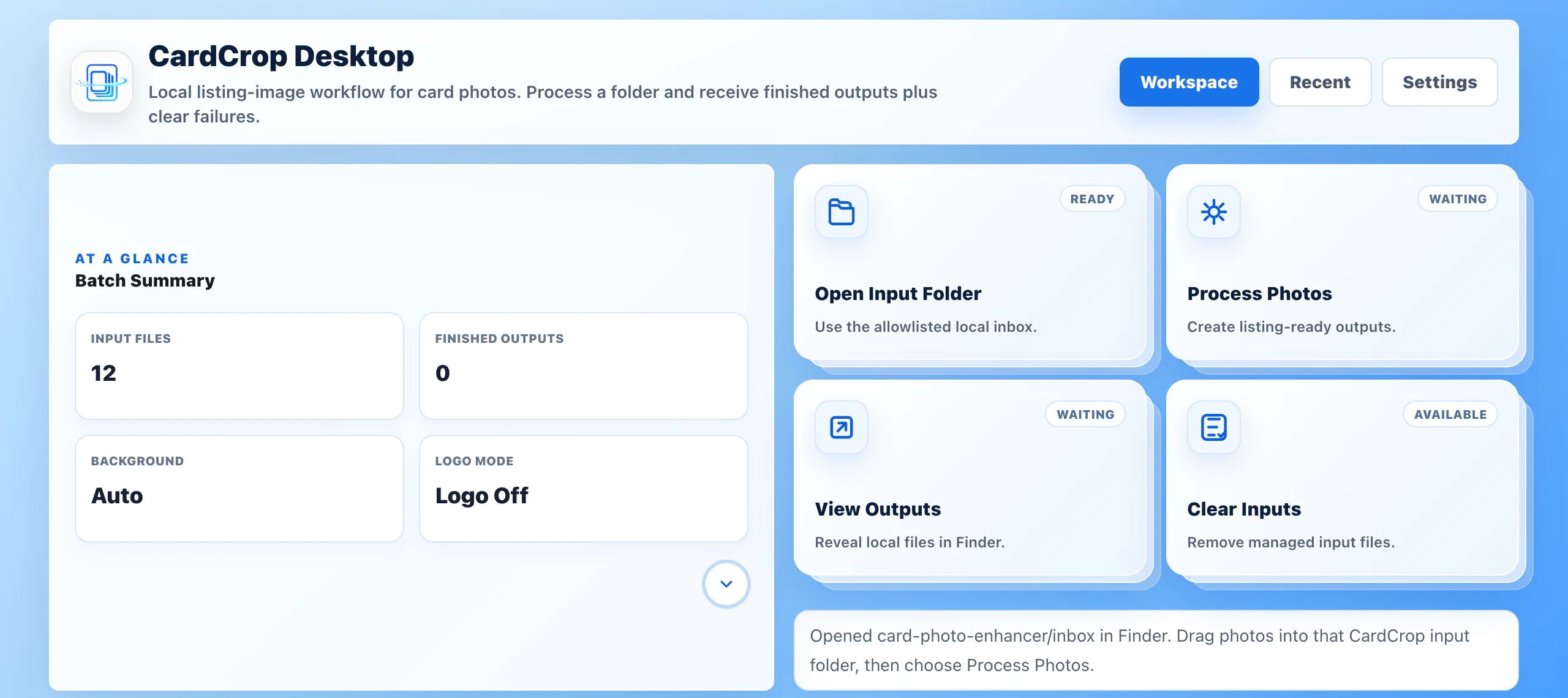
Choose a folder and prepare a batch.
Start with card photos in the local input folder. CardCrop shows the input count and selected finishing settings before you process them.
PROCESS TOGETHER
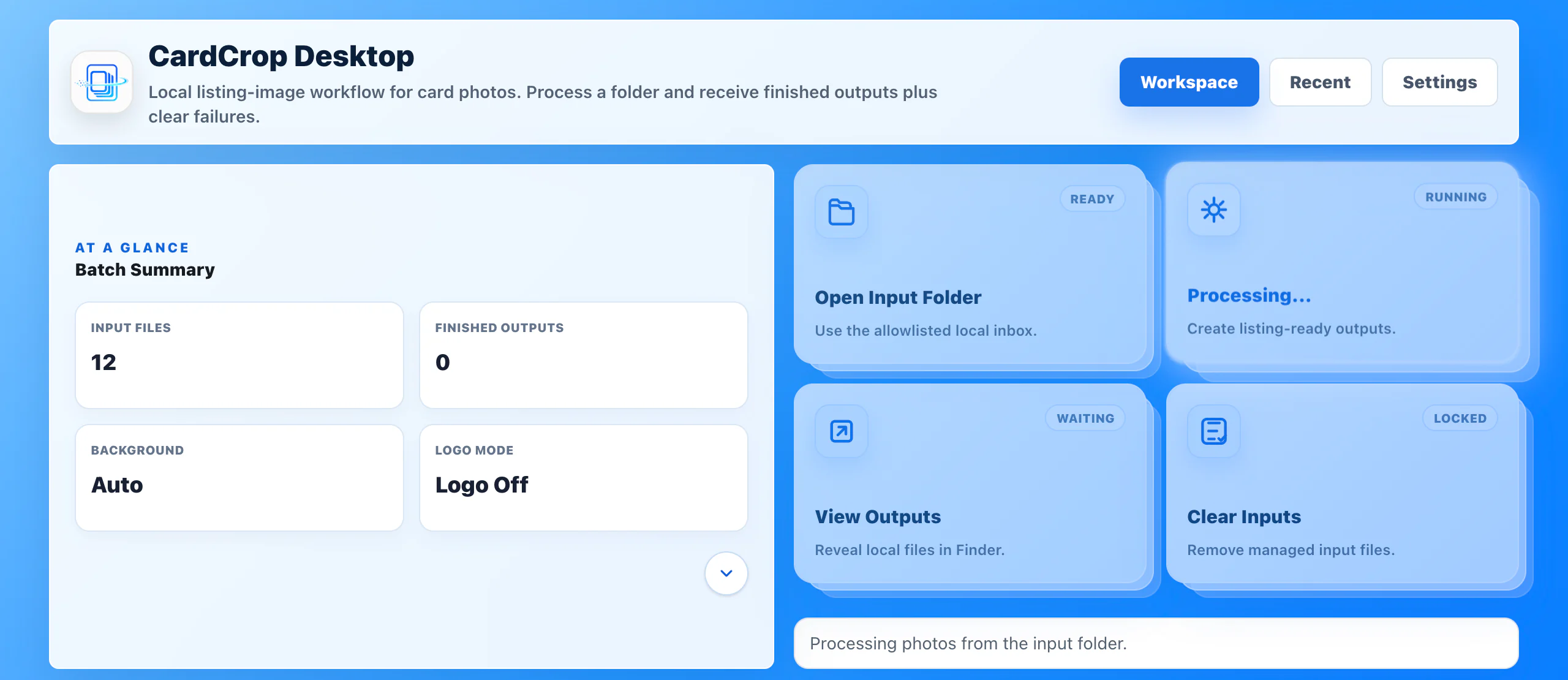
Process card photos as a batch.
Start processing from the input folder and check the workflow status while CardCrop works through the batch.
REVIEW THE RESULT
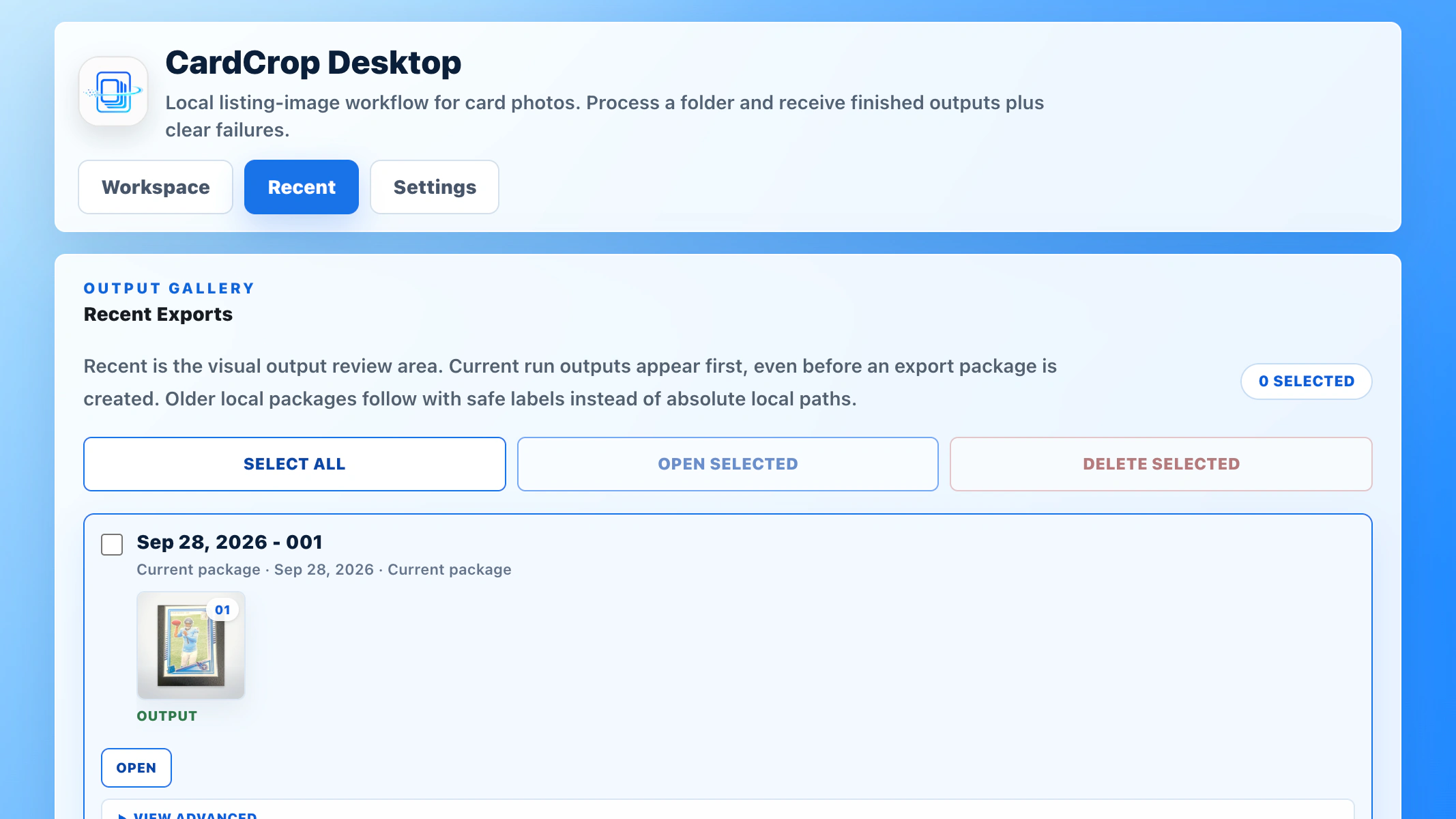
Review finished work and anything that needs another pass.
CardCrop reports the output it created and identifies source photos it could not process reliably, so you can review them before continuing.
How to use CardCrop Desktop
A simple local batch workflow.
- 01Choose a folder
Start with the card photos you want to work through in one local batch.
- 02Process the batch
Run the prepared photos together and check the workflow status as CardCrop works.
- 03Review the result
Check finished outputs and source photos that may need another pass.
- 04Continue your workflow
Use the next listing step that fits the way you work.
CardCrop Desktop